Custom Agents with Context Profiles
Video Tutorial
If you prefer watching a video tutorial, you can find one on our YouTube channel
Introduction
Context Profiles are a way to add custom instructions and re-usable GH-code-snippets (like clusters) to Raven.
Context profiles are available through the Raven Chat Settings, as seen in the following image (numbers 1 and 2):
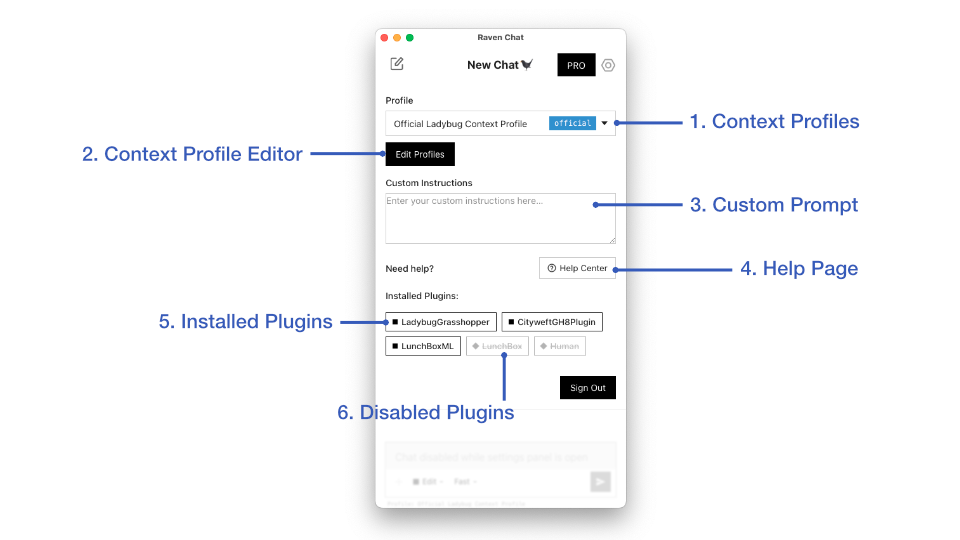
The dropdown at 1. lets you activate a context profile. If you select a context profile here, Raven will have access to it while working with you.
The button at 2. takes you to the Context Profile editor in your browser.
1. Context Profile Overview
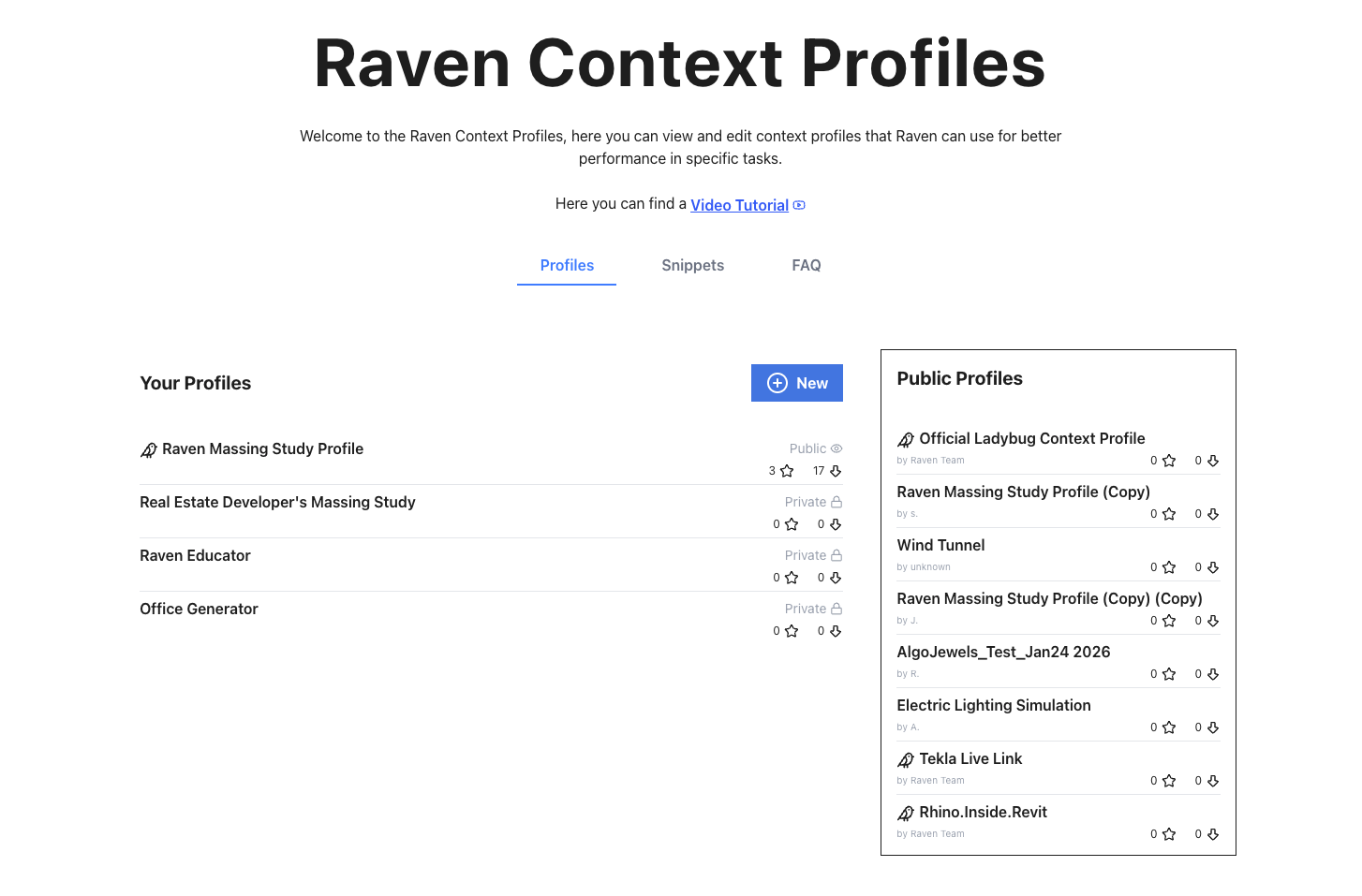
On the left you find your own profiles and a blue button to create a new context profile. In the panel on the right, you can see public profiles that others made.
Profiles with a little bird icon are the official profiels that we at Raven created for the community.
2. Snippets
Snippets are .ghx files that you can upload to make them available to Raven. A snippet can be a simple, short script or a more extensive script encompassing a whole workflow.
To upload a snippet, click the Snippets tab at the top (between Profiles and FAQ), give it a name and a description (for Raven to read) and click upload.
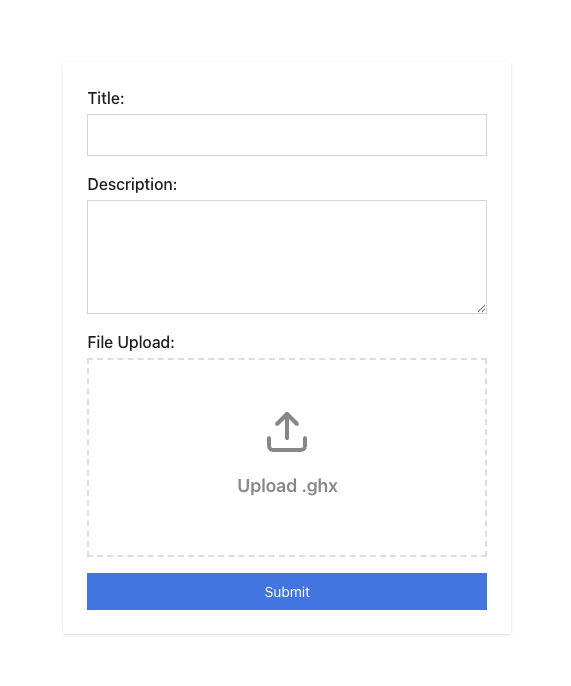
Once a snippet is uploaded, you can use it in any of your context profiles. Just select it from the list when creating a context profile. They will be available to load for Raven - BUT Raven does not know what's inside the .ghx file, it relies fully on the description you entered when uploading the snippet.
3. Context Profile Editor
The Context Profile editor can be used to create or edit a Context Profile.
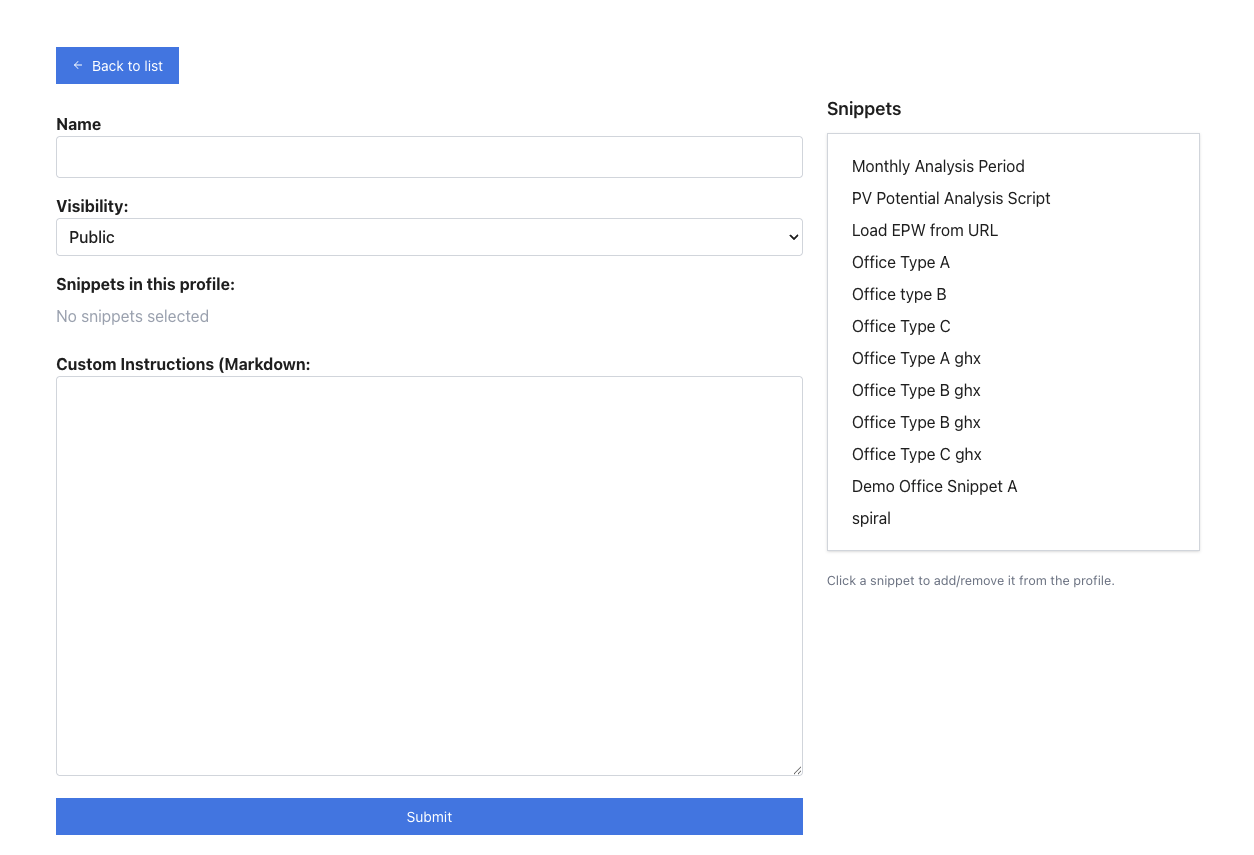
A Context Profile requires a name and some custom instructions (for Raven to read, think of it like a custom system prompt.)
You can also select snippets that should be available to Raven by selecting them in the list on the right.